Widget
Use IntakeCue widgets in Small, Medium and Large for a quick overview.
Steps
- Add IntakeCue as an iOS widget and choose Small, Medium or Large.
- The widget can show the next entry, name, amount, time or day part, and photo or symbol.
- Depending on size, open and completed counts may be shown.
- Enable Privacy Mode if private names should appear more discreetly.
- The widget uses local snapshot data through the Apple App Group and updates around events.
- If data is missing, an empty state appears. Tapping opens IntakeCue.
Local and private
The widget does not run permanently in the background. iOS also controls widget update timing.
No medical advice
The widget is an overview aid, not a medical confirmation or assessment.
App screenshots
Relevant views
The images support the steps, but do not replace the explanation.
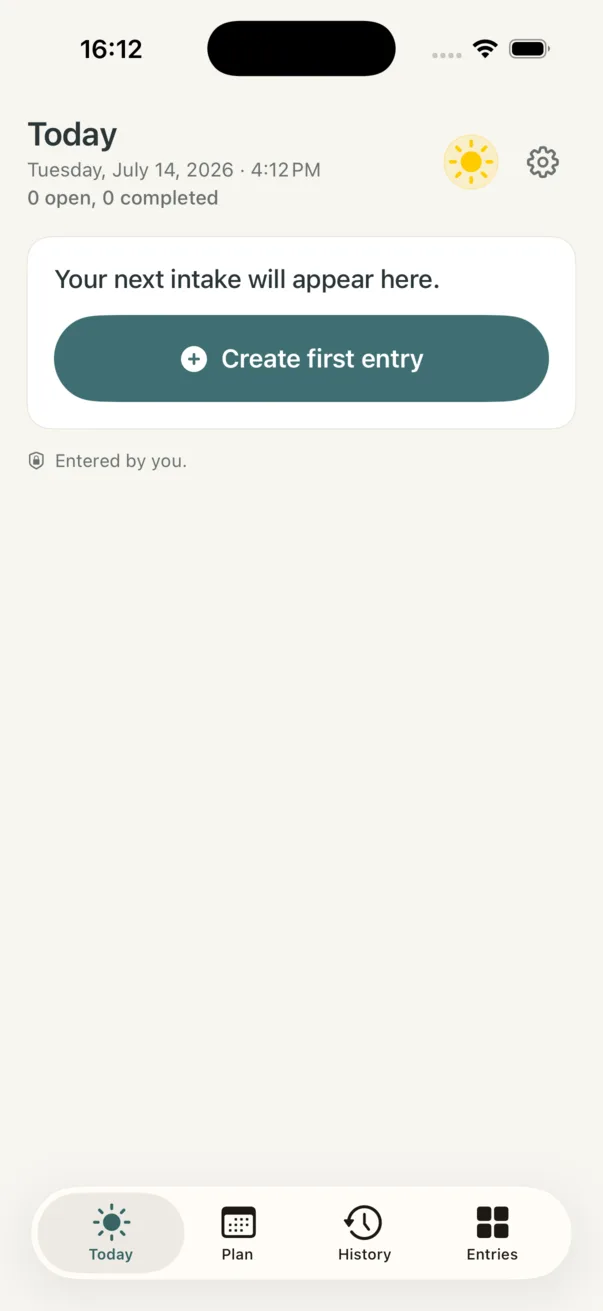
Empty state without entries
When no entries exist, the state stays understandable and leads to the first entry.
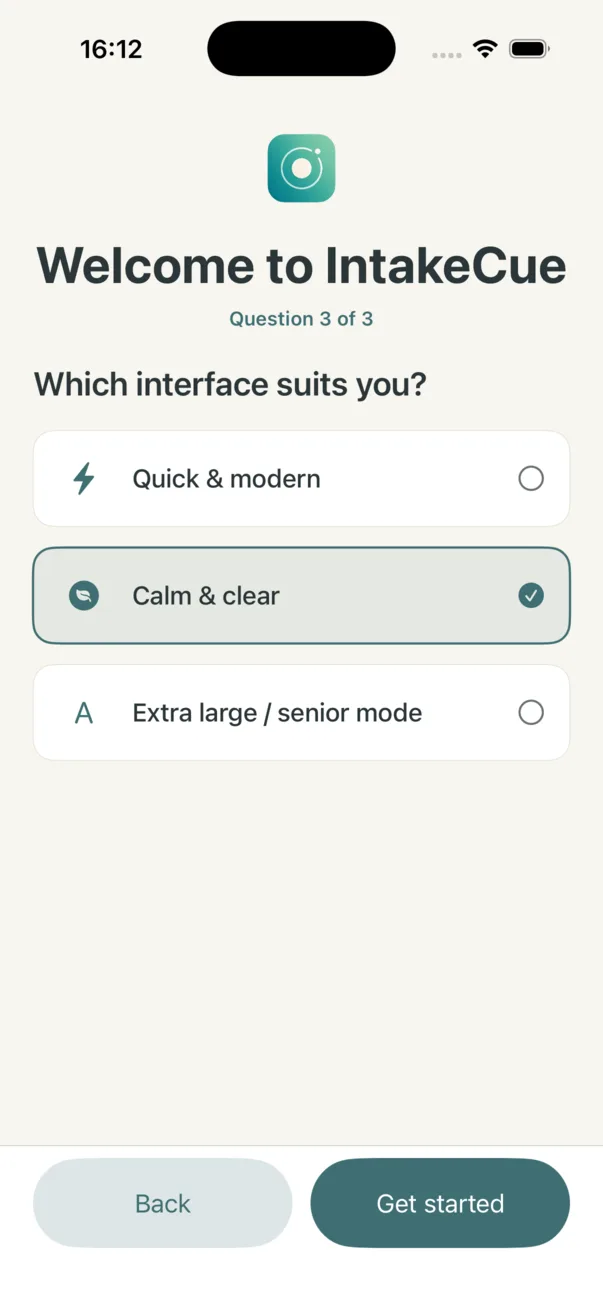
Choose a calm interface
The onboarding interface choice supports clearer, more discreet views.
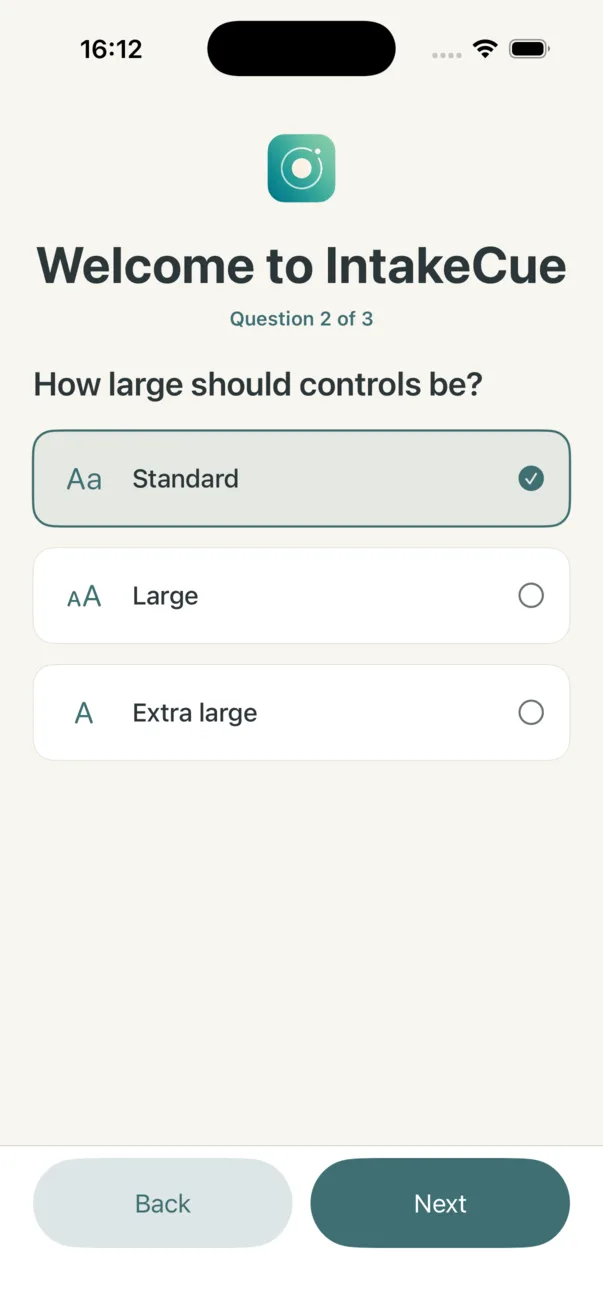
Set control size
Standard, Large and Extra large show that IntakeCue is prepared for different control sizes.