Notifications
IntakeCue uses local iOS notifications for planned events.
Steps
- Allow notifications when iOS asks. After permission, IntakeCue can enable them internally.
- Check Lock Screen, banners and sound in iOS Settings.
- One planned event creates one local notification. Multiple daily times create separate events.
- A time window reminds at the window start. All day creates at most one daily hint.
- Taken and Skip remove the specific reminder. Later replaces the previous reminder with a new local reminder.
- Use Privacy Mode if title and text should appear more discreetly.
- Test sound fallback, test notification, Focus mode, Silent mode and the shortcut to iOS Settings.
Local and private
Notifications are local notifications, not remote pushes. There is no automatic spam repeat.
No medical advice
iOS settings, Focus, Silent mode, Lock Screen behavior or technical limits may delay or hide reminders.
App screenshots
Relevant views
The images support the steps, but do not replace the explanation.
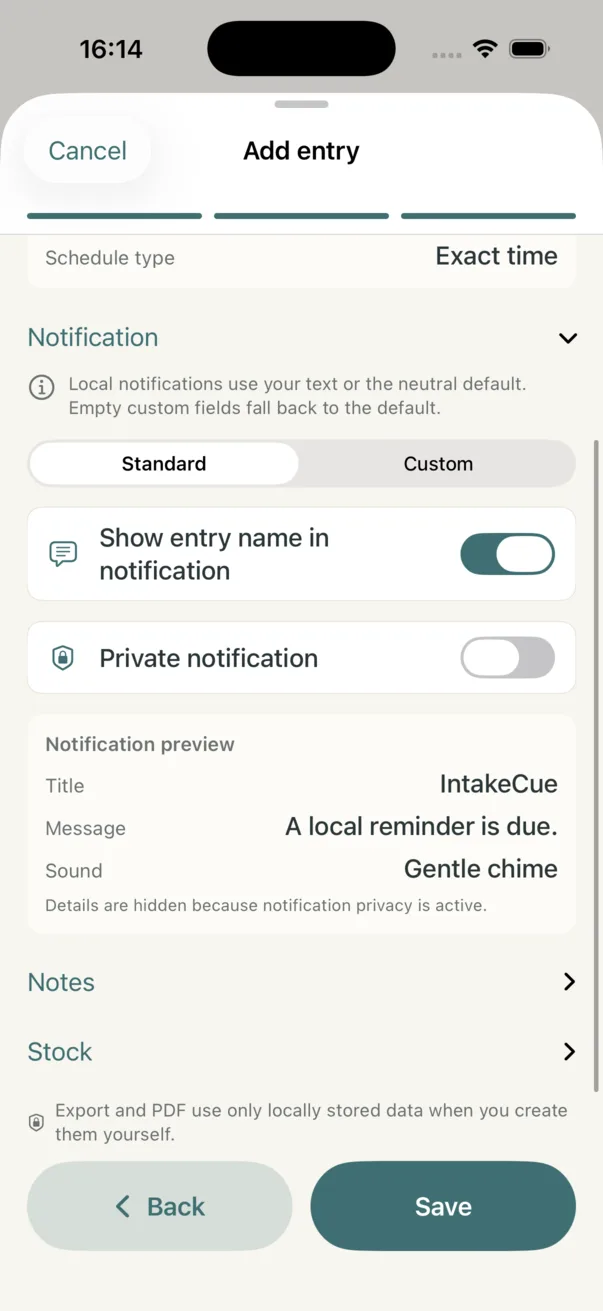
Private notification settings
Title, text, sound and private display are shown before saving.
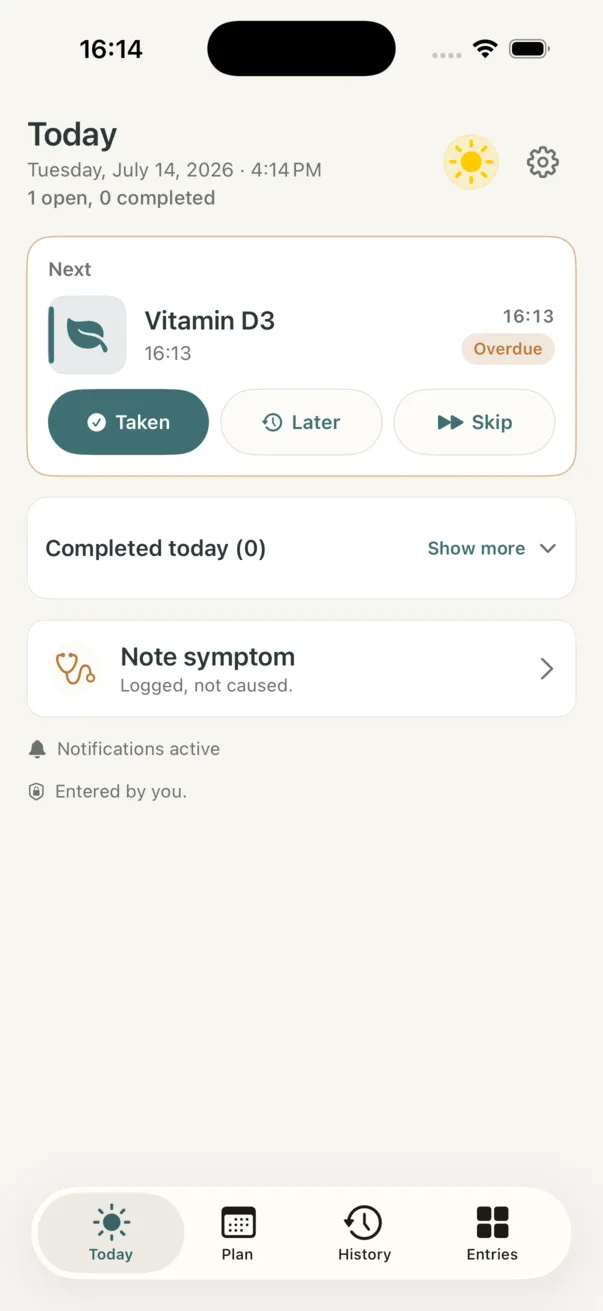
Today with active notifications
The active Today screen shows that local notifications are active for the next entry.